Mobile App Configuration Settings
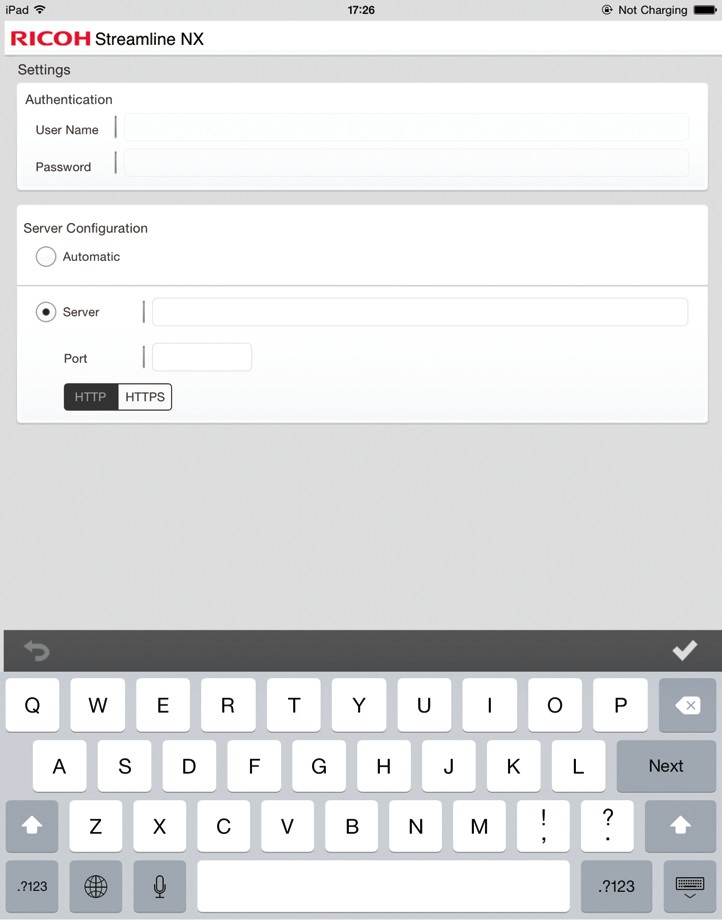
Before using the RICOH Streamline NX for User mobile app, configure the authentication settings and specify the connecting SLNX server on the [Settings] screen.
The [Settings] screen is displayed at initial startup after download from the App store is complete.
If the [Settings] screen is not displayed, or to change the default settings during use, press [ ].
].
-
Start the mobile app.
-
Use the [Settings] screen to configure the default settings.
-
User Name: Enter the user name to use when logging in to the SLNX server. Use the format "domain\user".
-
Password: Enter the password to use when logging in to the SLNX server.
-
Select the method for connecting to the SLNX server.
-
Select [Automatic] to search for the SLNX server and connect to it automatically.
-
To specify the server manually, enter the SLNX server name or IP address in [Server] and its port number in [Port], and then select [HTTP] or [HTTPS]. You can specify multiple servers by separating them using a comma.
- You can select [Automatic] only when the mobile device and the Streamline NX server exist on the same network.
- If you specify [Automatic] when performing server search, you can access only the server that is connected under the same router as the one the mobile device is connected to.
|
Item |
Description |
|---|---|
|
Authentication |
|
|
Server Configuration |
|
-
Press [Apply].
The SLNX mobile app tests the connection to the SLNX server. If the connection attempt fails, an error message is displayed. Contact the administrator.
- To use the SLNX mobile app, install the SSL certificate file on the mobile device for secure communication. For details, refer to Install the Certificate on a Mobile Device.
- For details about entering text and operating the mobile device, see the user's guide supplied with the mobile device.
- The language specified on the mobile device is used for the display language.
- [Server Configuration] is always set to [HTTPS] when you are using the app under iOS. Also, the port used for HTTPS communication becomes the default port of the server.
